
Create and Insert an H5P Activity in Content
- Open the content page where the activity should appear.
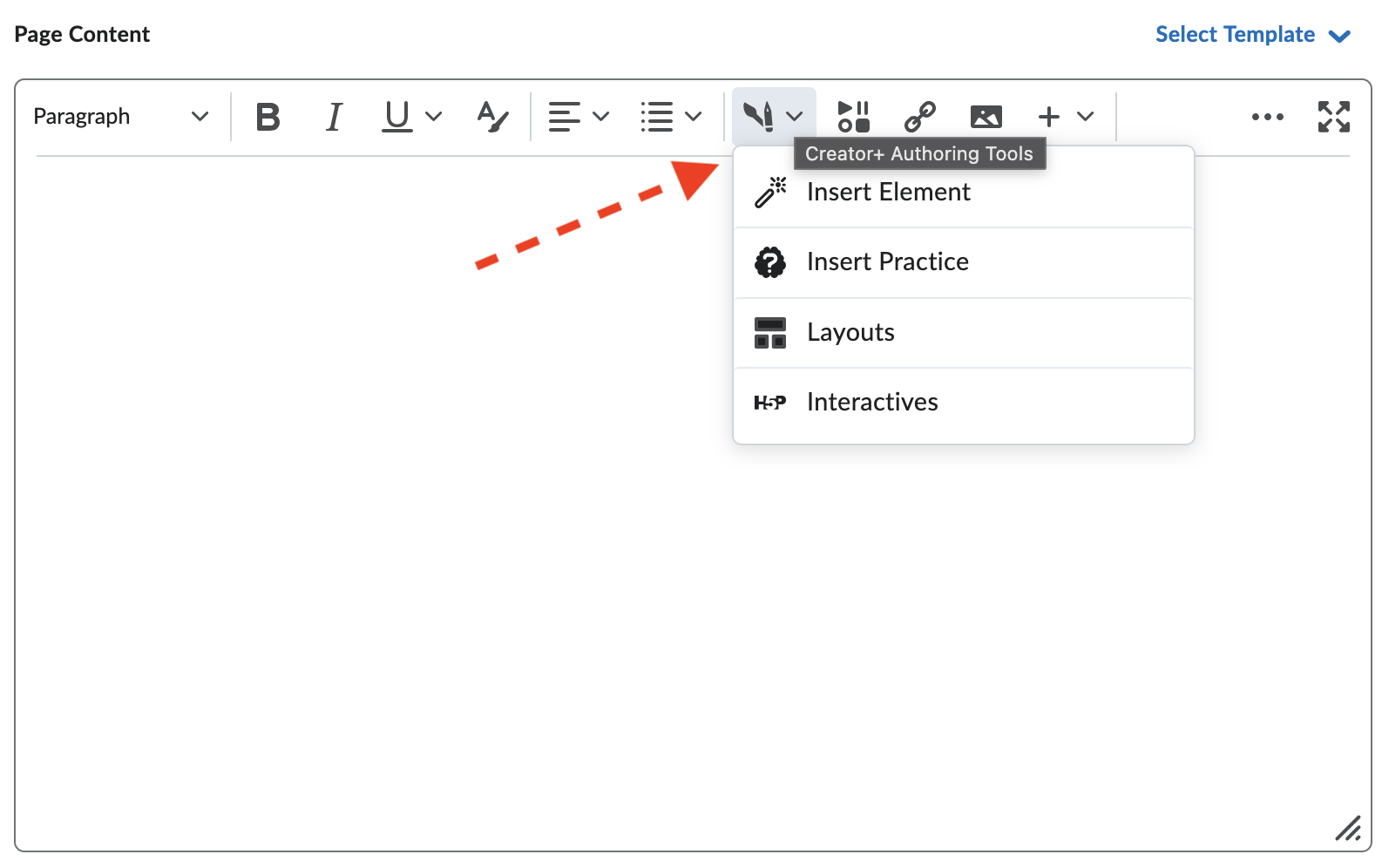
- In the toolbar, select the Creator+ Authoring Tools icon and select H5P Interactives. Note: Do not use the H5P option under Insert Stuff.
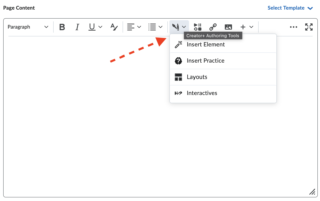
- On the Interactives screen, use Category or List view to choose an activity type. Select View in H5P if you need to manage activities in the H5P portal, or select Import Existing Interactive to reuse an existing activity.
Choose whether the activity is graded
Once you chosen or created an activity, in the H5P LTI settings of the activity, choose how scores should be sent to the Avenue gradebook.
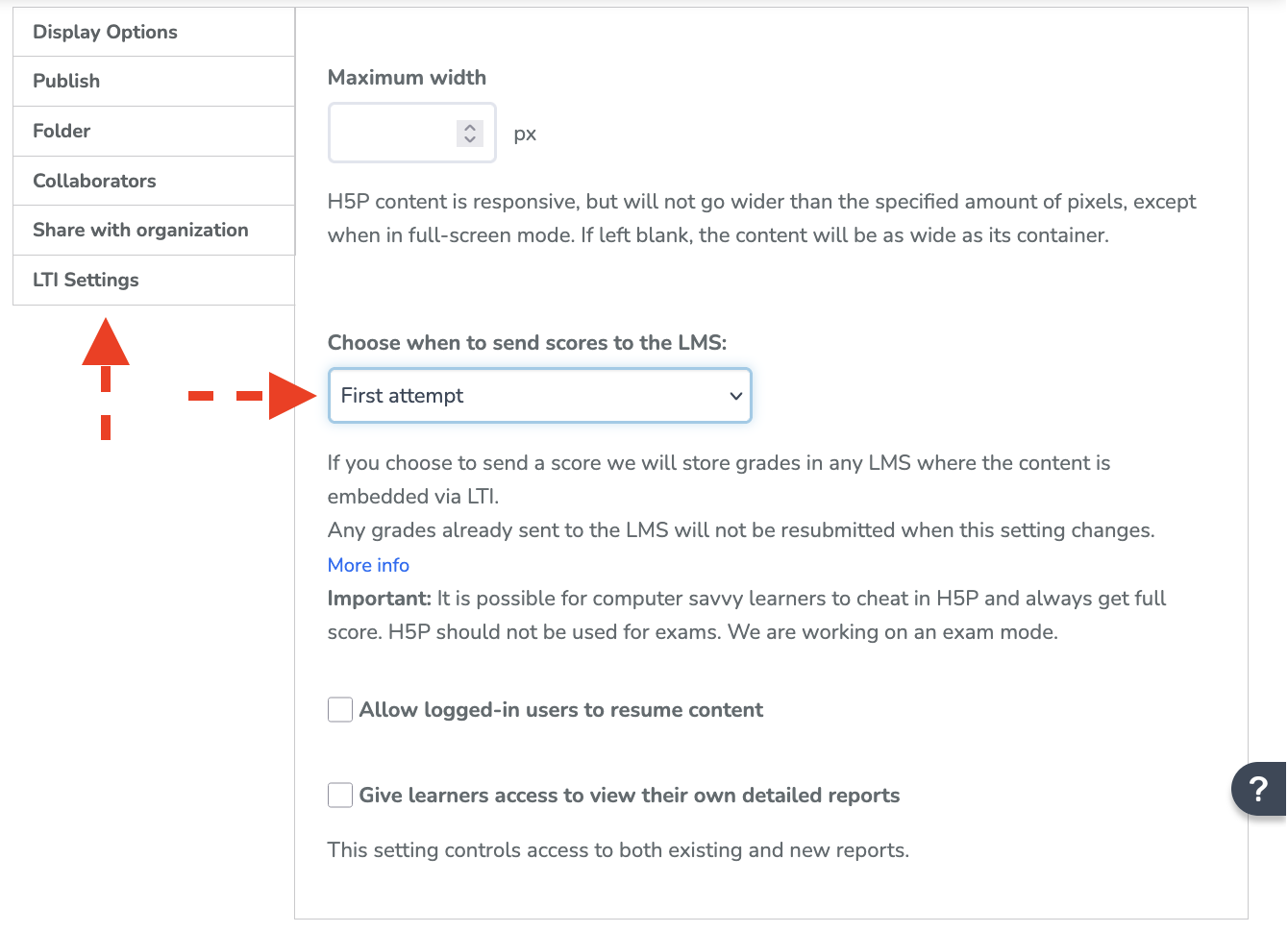
- If you want an ungraded activity: Select Do not send score.
- If you want a graded activity: Select First attempt, Last attempt, or Best attempt, depending on how you want Avenue to Learn to receive the learner score.
- Important: If an H5P item is being used for a graded activity, instructors should verify that the Summary/Submit screen is available to students before making the activity available. You must enable the summary/submit screen in order for grades to transfer to the gradebook.
Important: If the same H5P activity is used across multiple courses, modules, or pages, changing the score setting can affect all instances of that activity. It’s recommend to create a copy of the H5P activity first if you need a graded version in one location and an ungraded version in another.
Set up a graded H5P activity
1. After selecting a graded score option, insert the H5P activity into the HTML page and save the page.
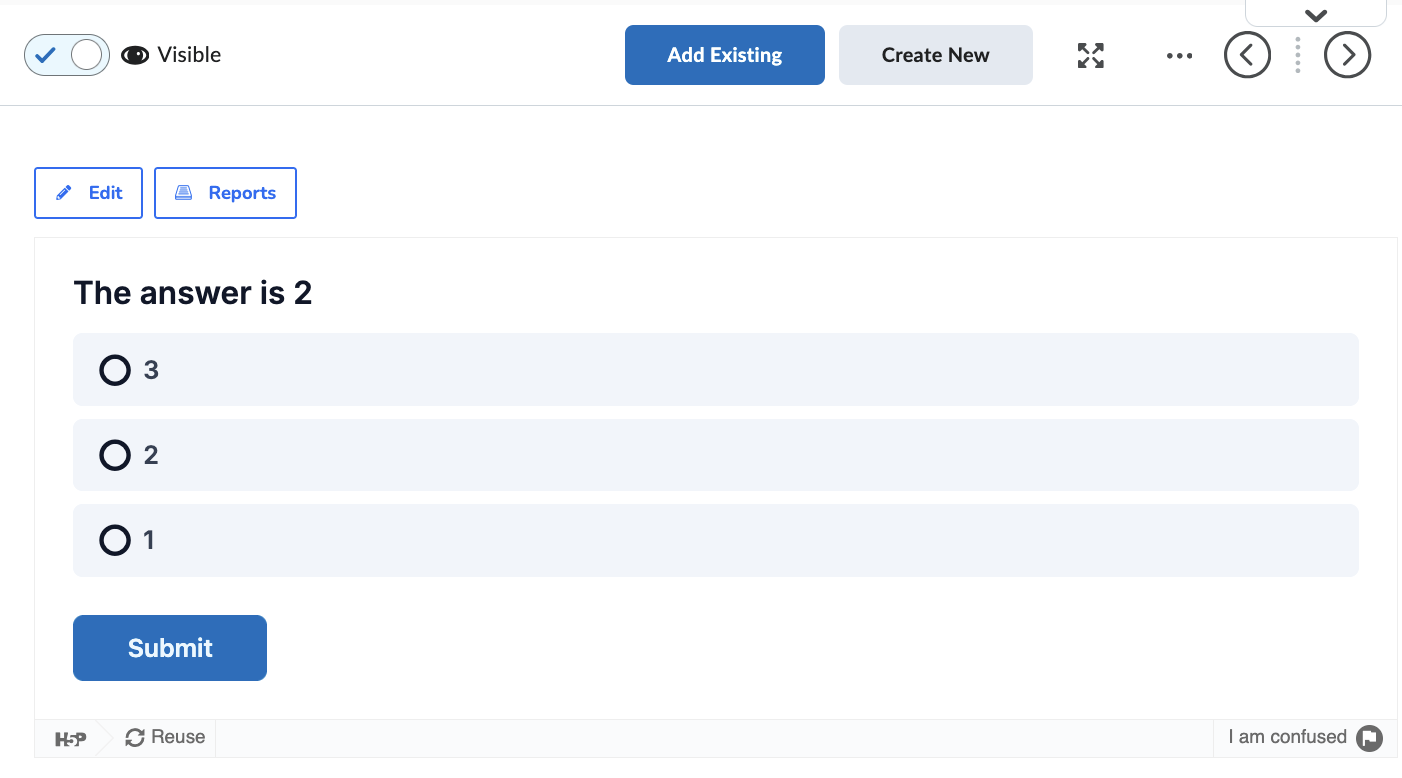
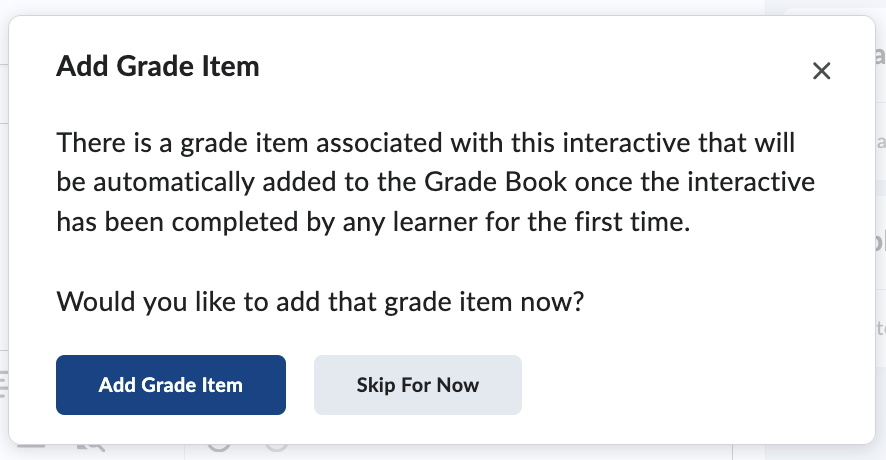
2. You should get a new window asking if you’d like to add a new grade item. It is important that you click Add Grade Item.
Important:
- Simply embedding an H5P interactive in a page using Create New File or Page will not make it gradable unless you see and complete the Add Grade Item prompt.
- If you do not see the Add Grade Item prompt, the interactive will not be gradable.
- If you want to collect learner submissions (files, written work), use the Assignments tool instead.
3. Use View as Student to complete the activity. This can trigger the Avenue grade item. A grade item may also be created after the first learner attempts the activity
4. Navigate to Grades in the Admin section, then go to Manage Grades. Review the new grade item created by H5P that is associated with the new assessment. By default, the item will be worth 10 points, excluded from the final grade calculation, and marked as an External Learning Tool item.
5. Edit the grade item as needed. Confirm the point value, grade category, visibility, and whether Exclude from Final Grade Calculation should remain selected.
Troubleshooting
If the grades for an activity are not sending and you are receiving an error message “Your gradebook did not confirm receiving this attempt” please contact Avenue support.