
Use this process when an H5P activity is connected to the gradebook, but should no longer send a score. Complete these steps before deleting grade items.
- Open the HTML page that contains the H5P activity.
- Edit the H5P activity and change the LTI setting to Do not send score.
- If the activity is reused elsewhere, clone it first, then change the setting only on the cloned version.
- Save the activity.
Remove the gradebook association and delete the grade item
You can only delete Avenue to Learn grade items that are not still associated with an activity.
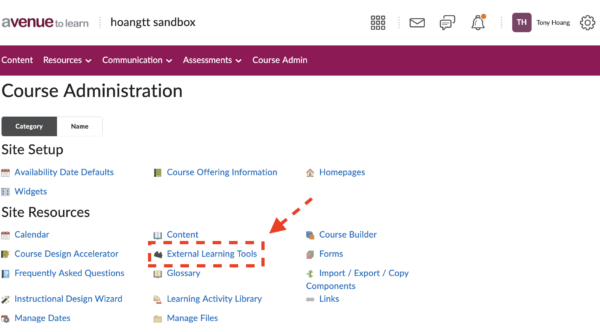
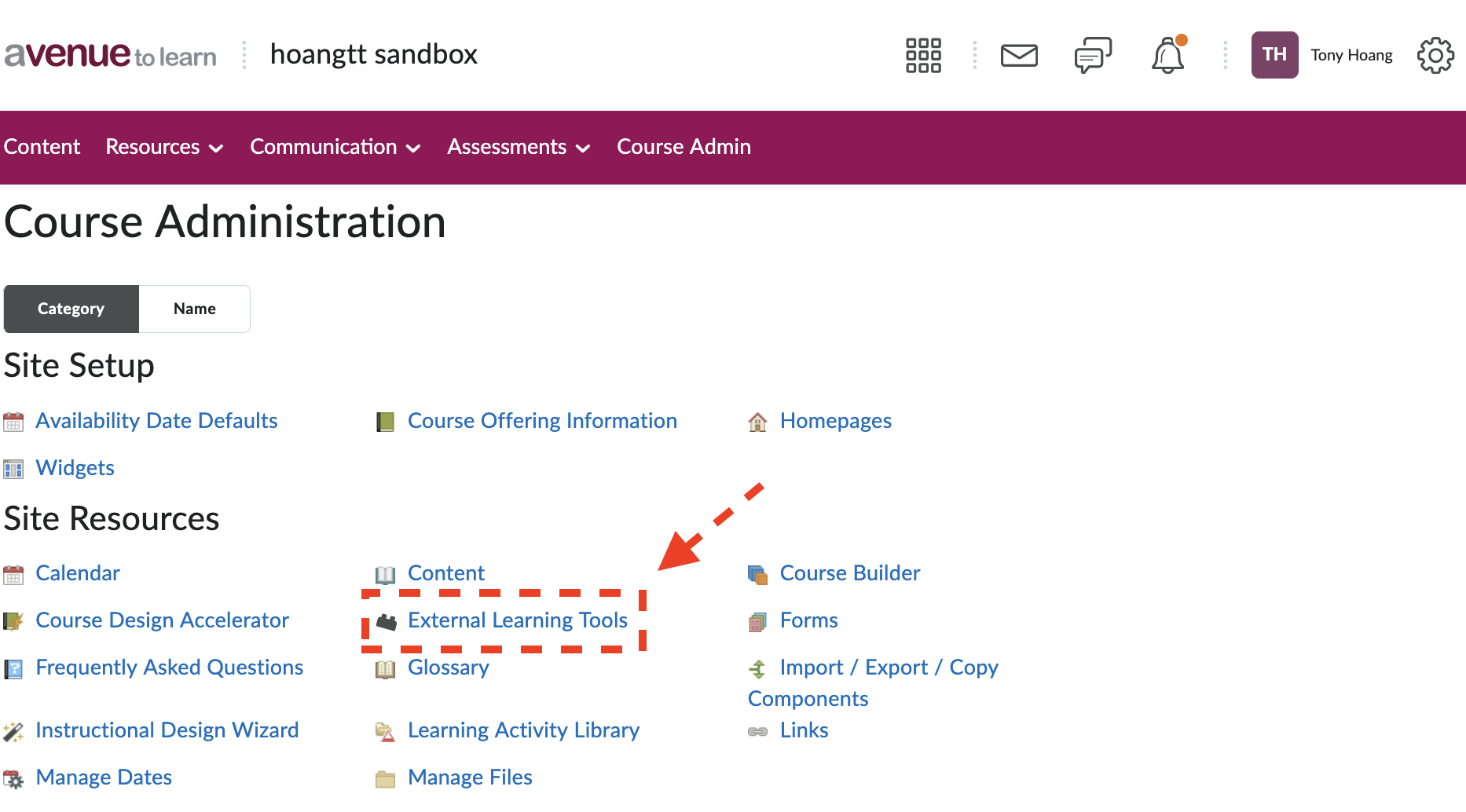
- Go to Course Admin, then External Learning Tools.
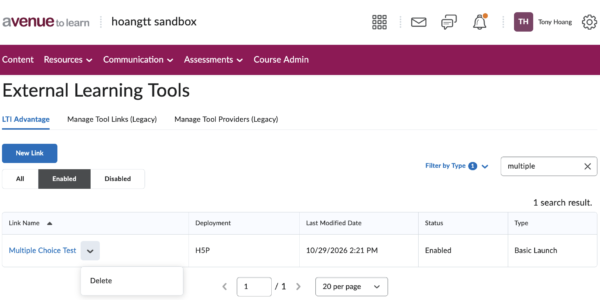
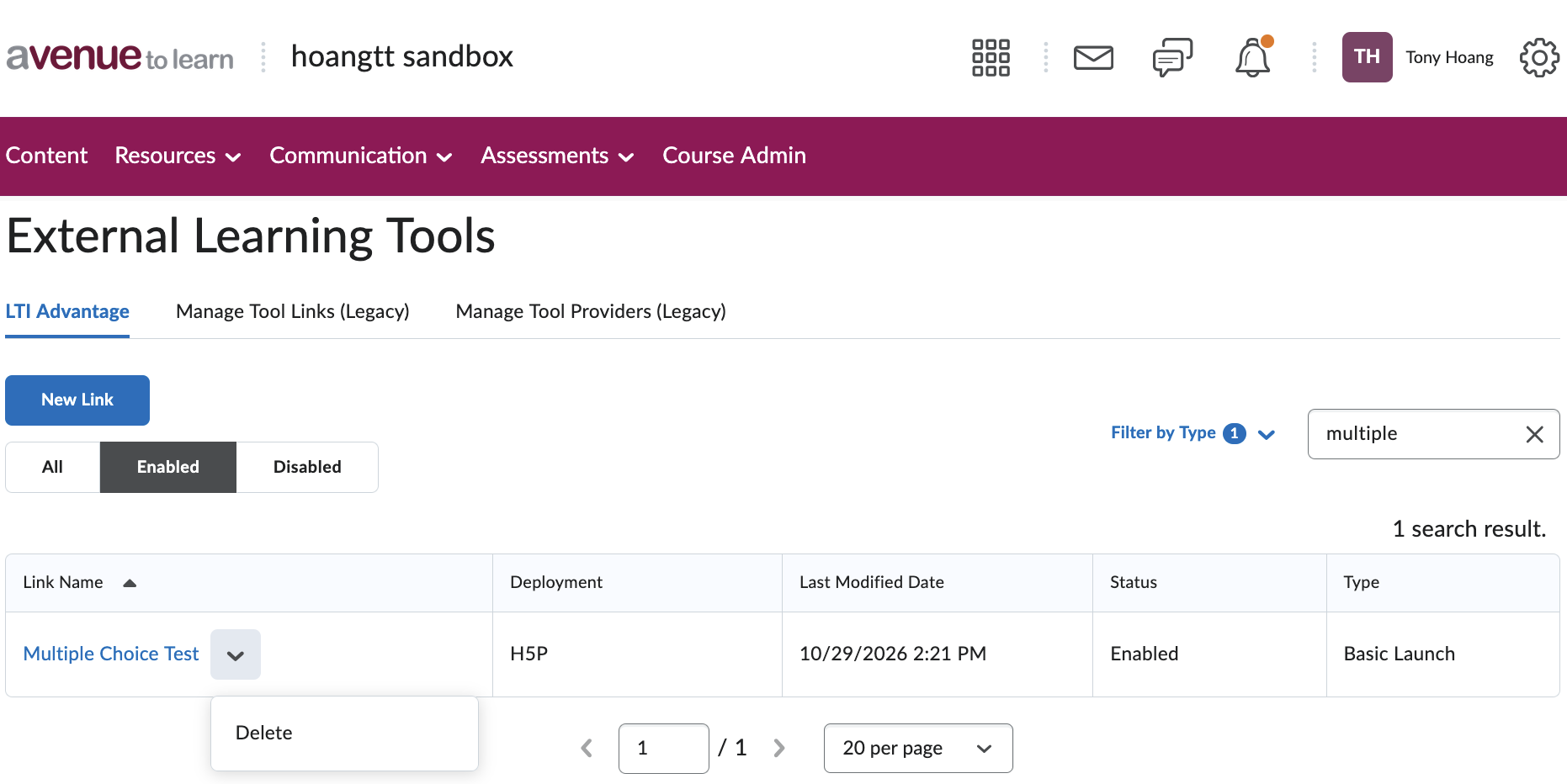
- Find the external learning tool link for the H5P activity, open the drop-down menu, and select Delete.
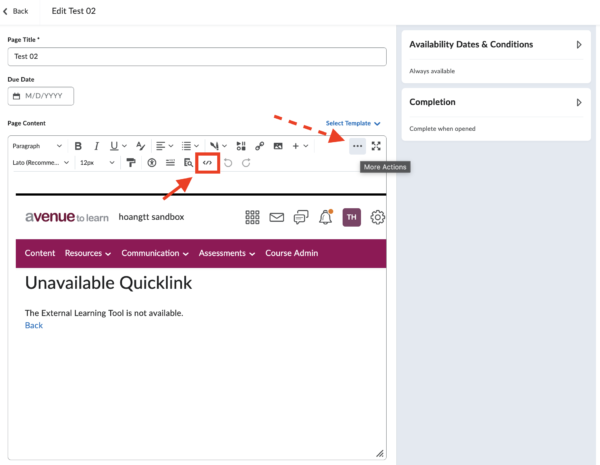
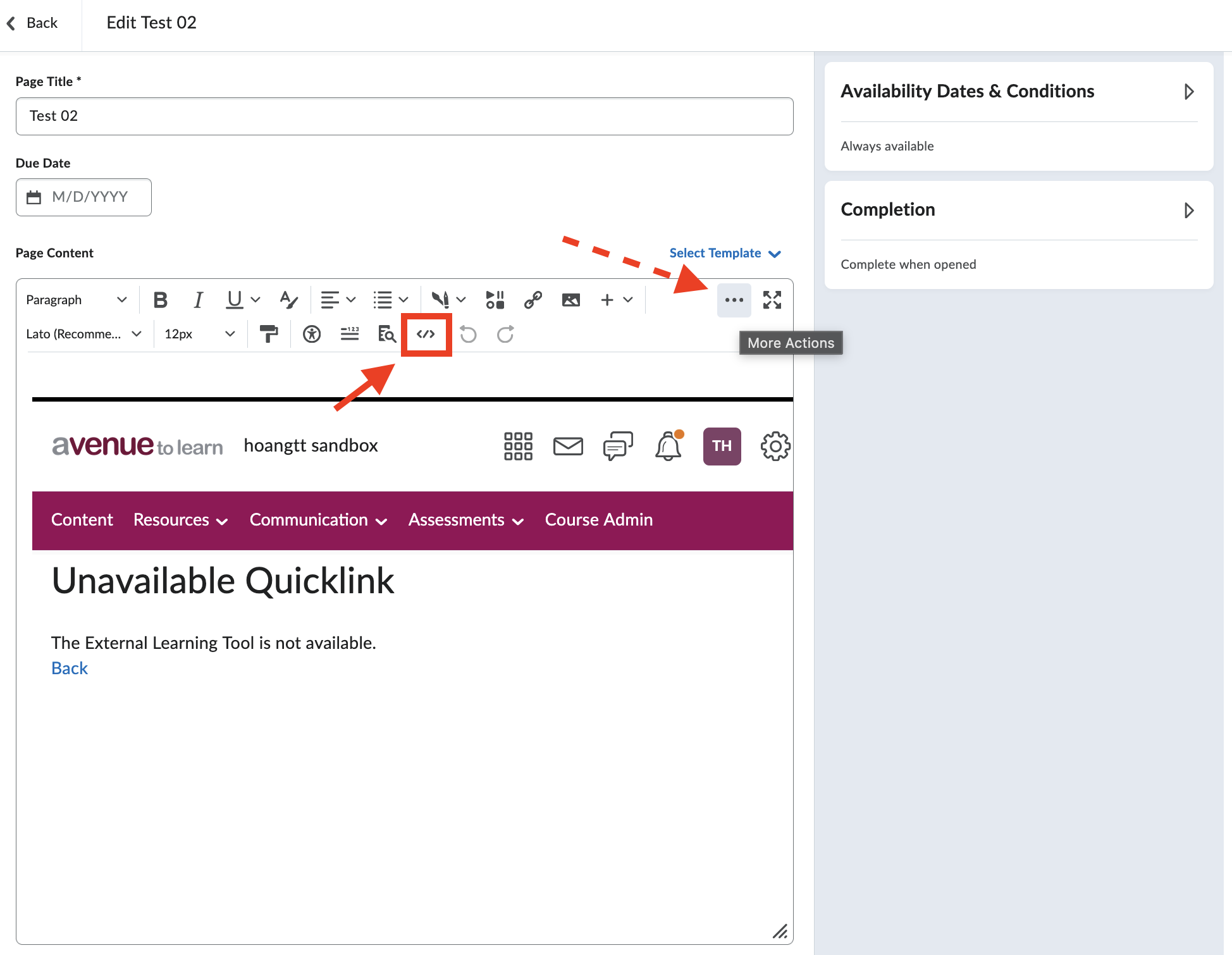
- Return to Content and open the HTML page that contains the H5P activity. You will see that the activity no longer appears and it says Unavailable Quicklink. Select More Actions and then the Source Code Editor.
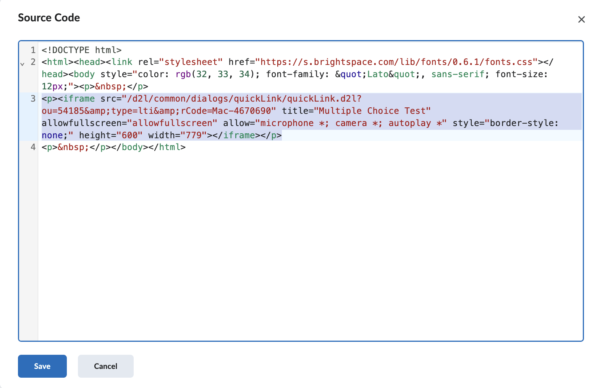
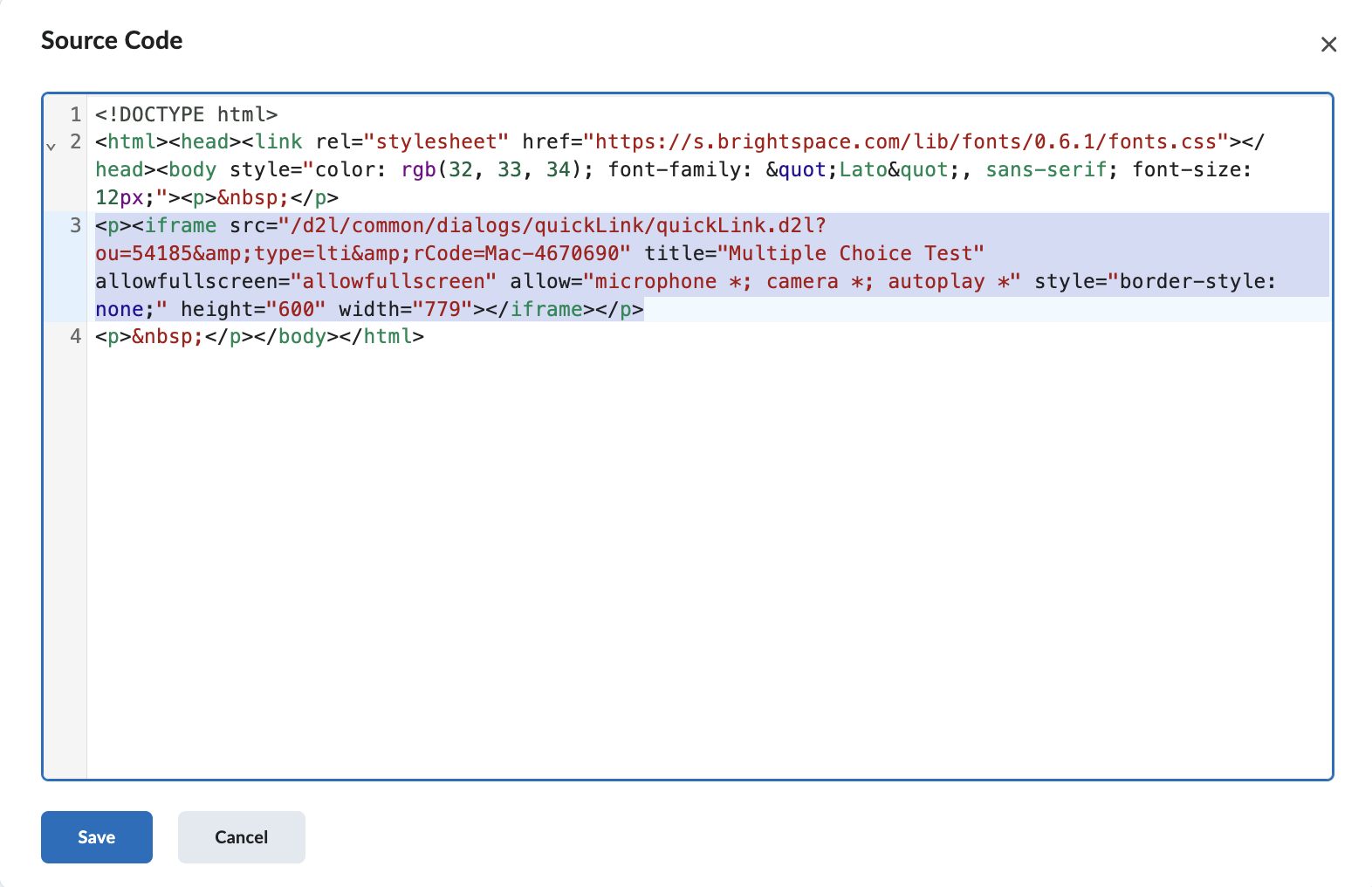
- Edit the page in Source Code view and remove the old H5P embed or HTML entry for the activity.The code needed to be removed is usually the content with <iframe>
- Reinsert the activity using the Creator+ Authoring Tools option, then H5P Interactives, then click Save to the page.
- Go to Grades, then Manage Grades.
- Select More Actions then Delete.
- In the Delete Grade Items and Categories window, select the grade item, then select Delete.
Troubleshooting
- If you cannot edit an H5P activity, you may not own it. Contact the creator (owner).
- If the grade item cannot be deleted, confirm that the H5P activity is set to “Do not send score” and that the External Learning Tool link has been removed.
- If a graded activity is not appearing in the gradebook, complete it in View as Student or have a test learner attempt it, then check Grades, then Manage Grades again.
- If you are unsure whether changing an existing activity will affect other courses, clone the activity before changing score settings.