
There are two ways to access H5P within Avenue to Learn, through the Creator+ Authoring Tools navigation, or through Insert Stuff.
Accessing H5P through the Creator+ Authoring Tools
When creating content, you can access the Creator+ Authoring Tools by clicking the icon that looks like a paint brush in the HTML editor.
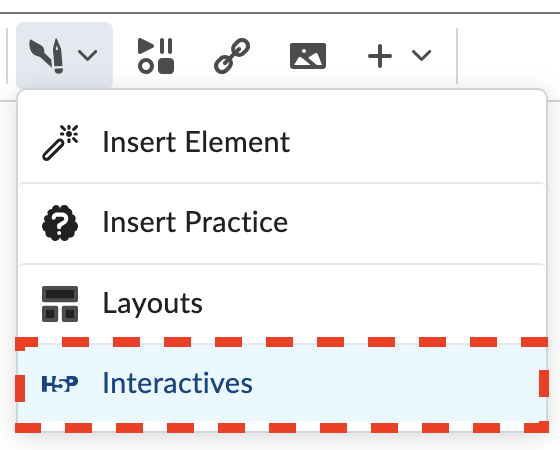
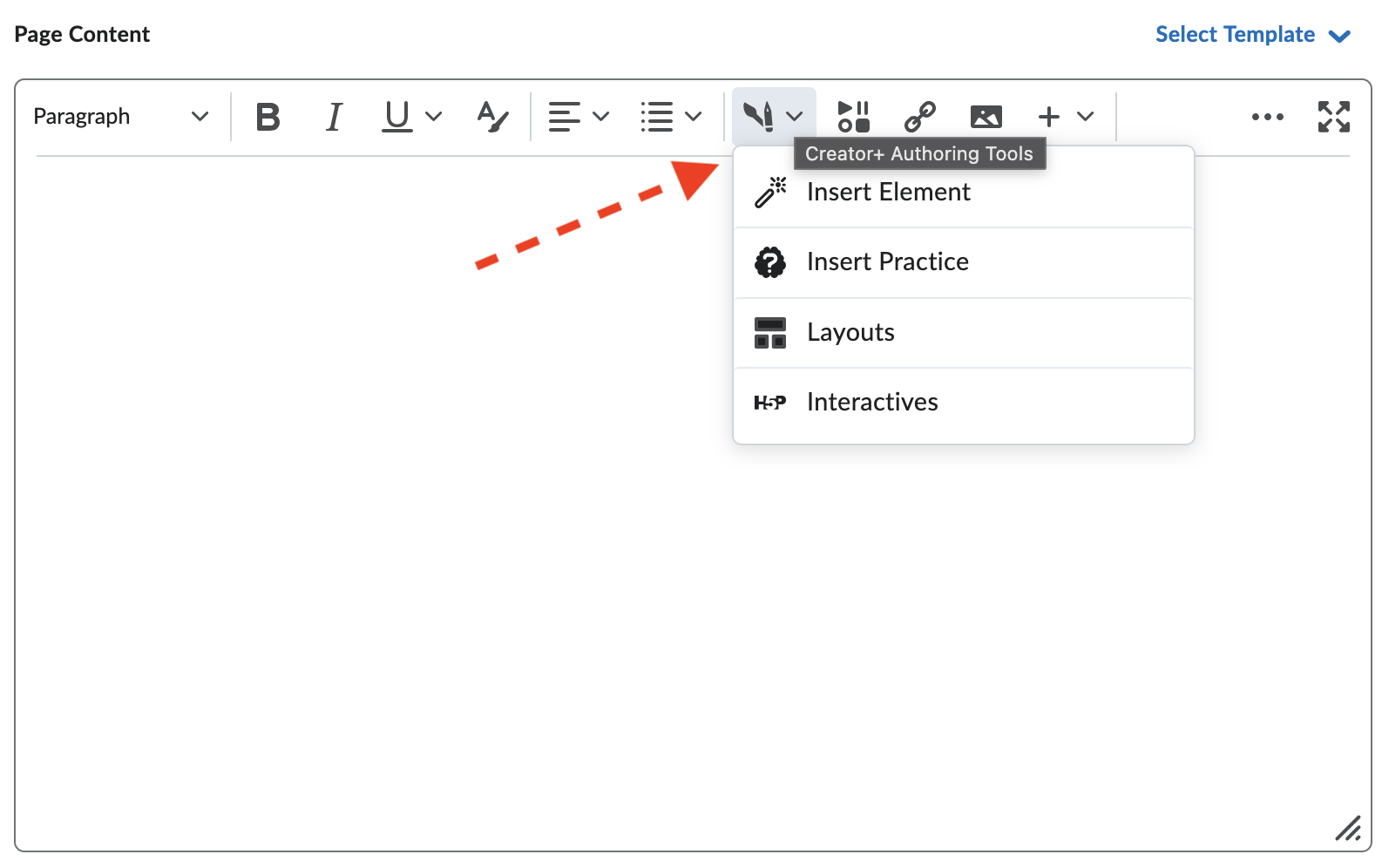 In the drop down menu that appears, select H5P Interactives at the button of the list.
 Once you select this H5P will load and you will be able to start creating right away. Browse or search the available tools you’d like to create.
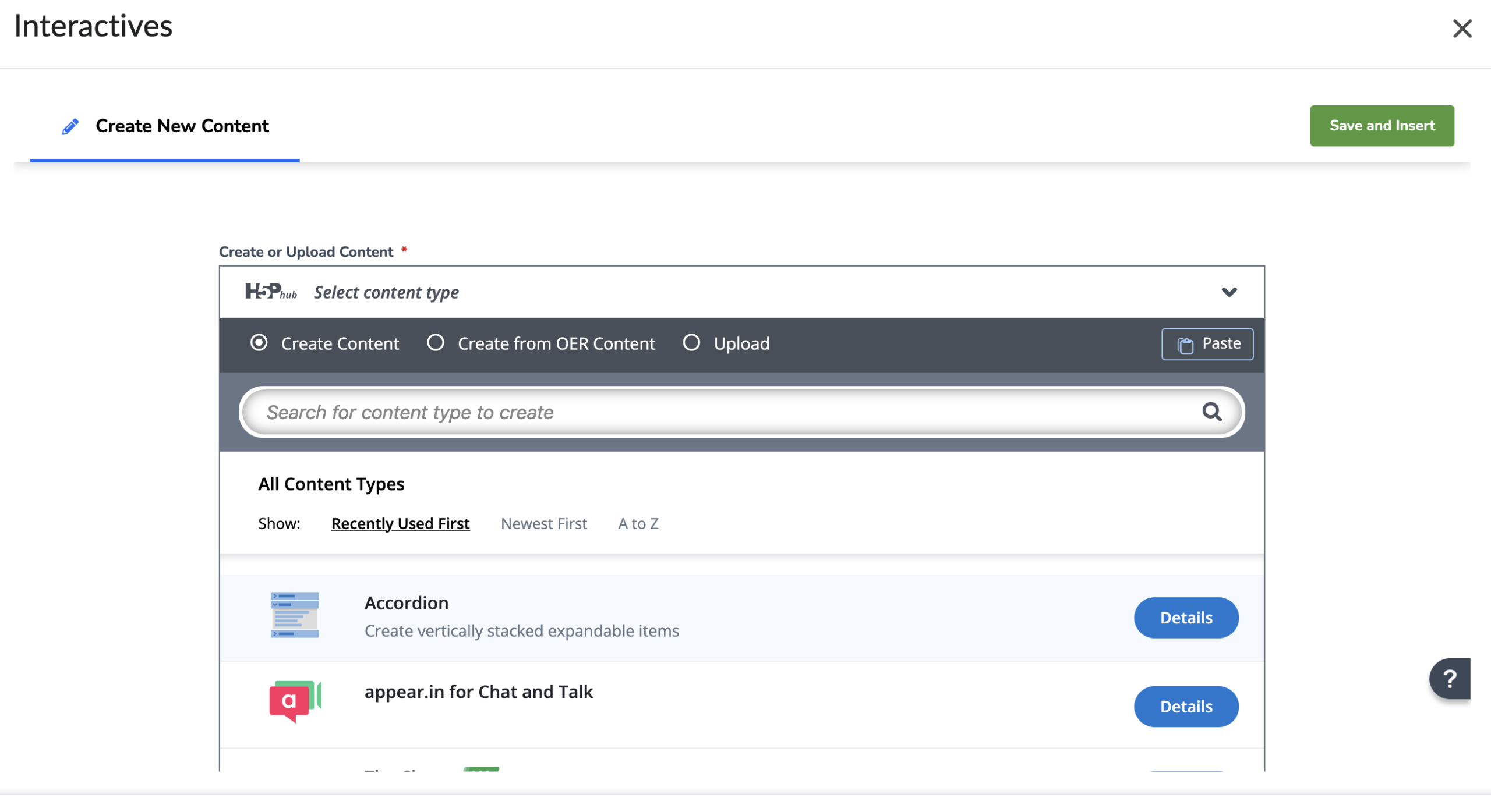
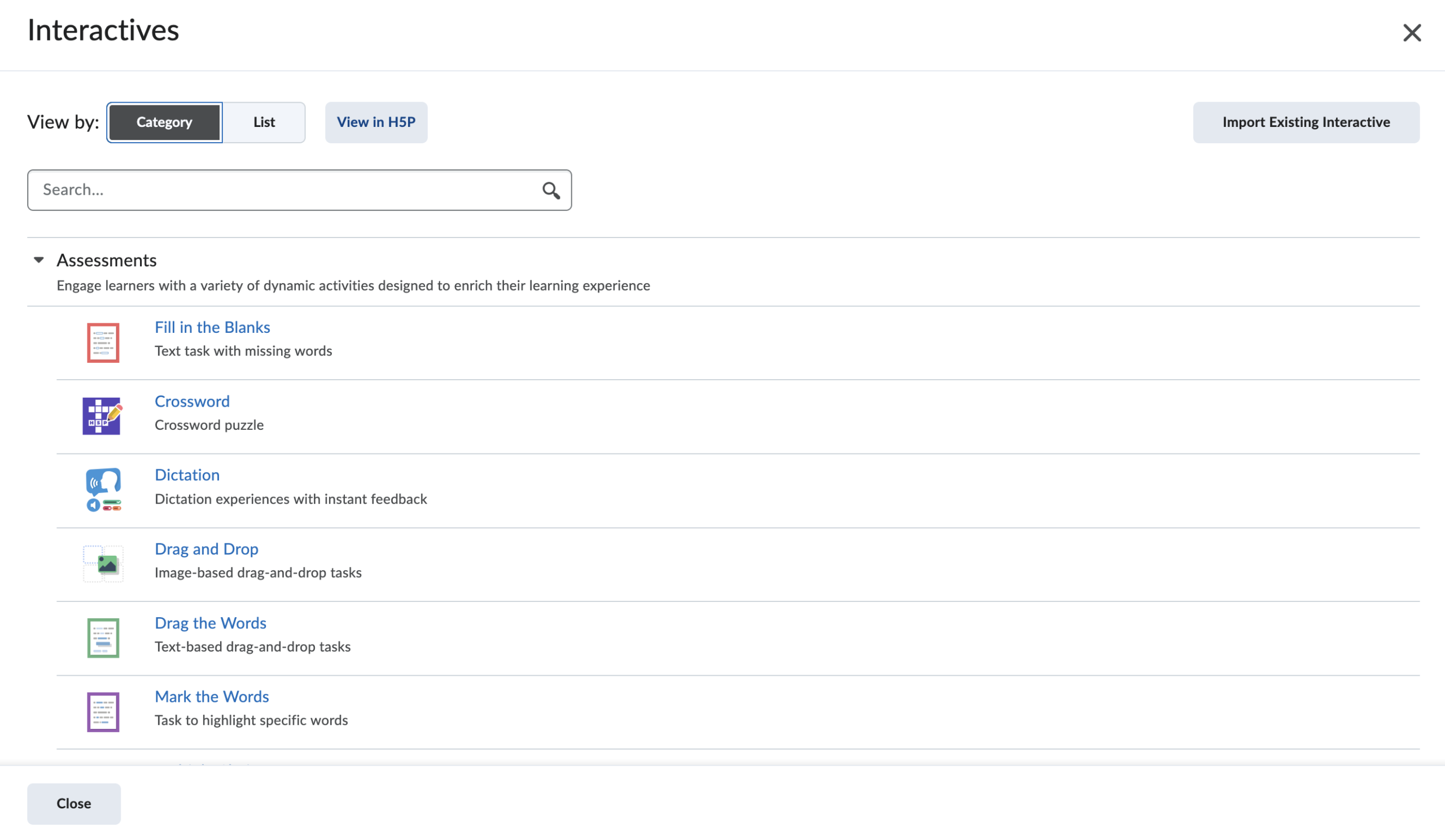 Clicking the View in H5P button will then take you another page which you can create from OER content or Upload any activities you may have already created and exported to an .h5p file format.
Accessing H5P through the Insert Stuff navigation
When creating content, select the Insert Stuff button by clicking the icon that has 4 smaller shapes (a play triangle, circle, two lines, square) in the HTML editor.
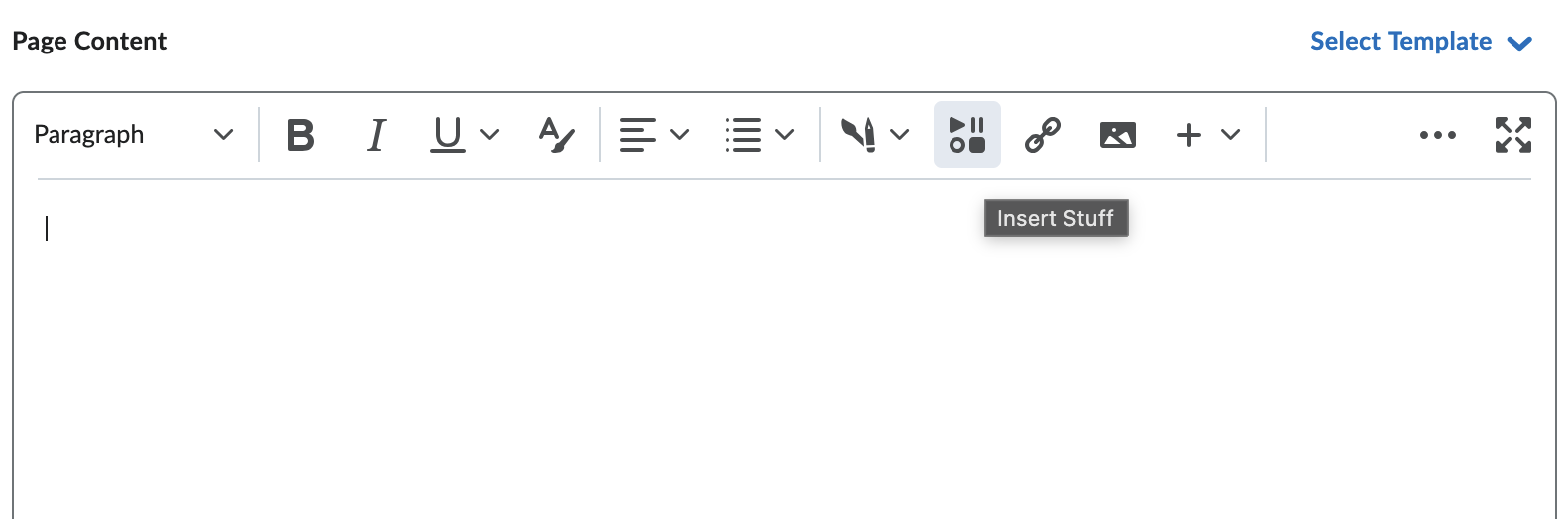
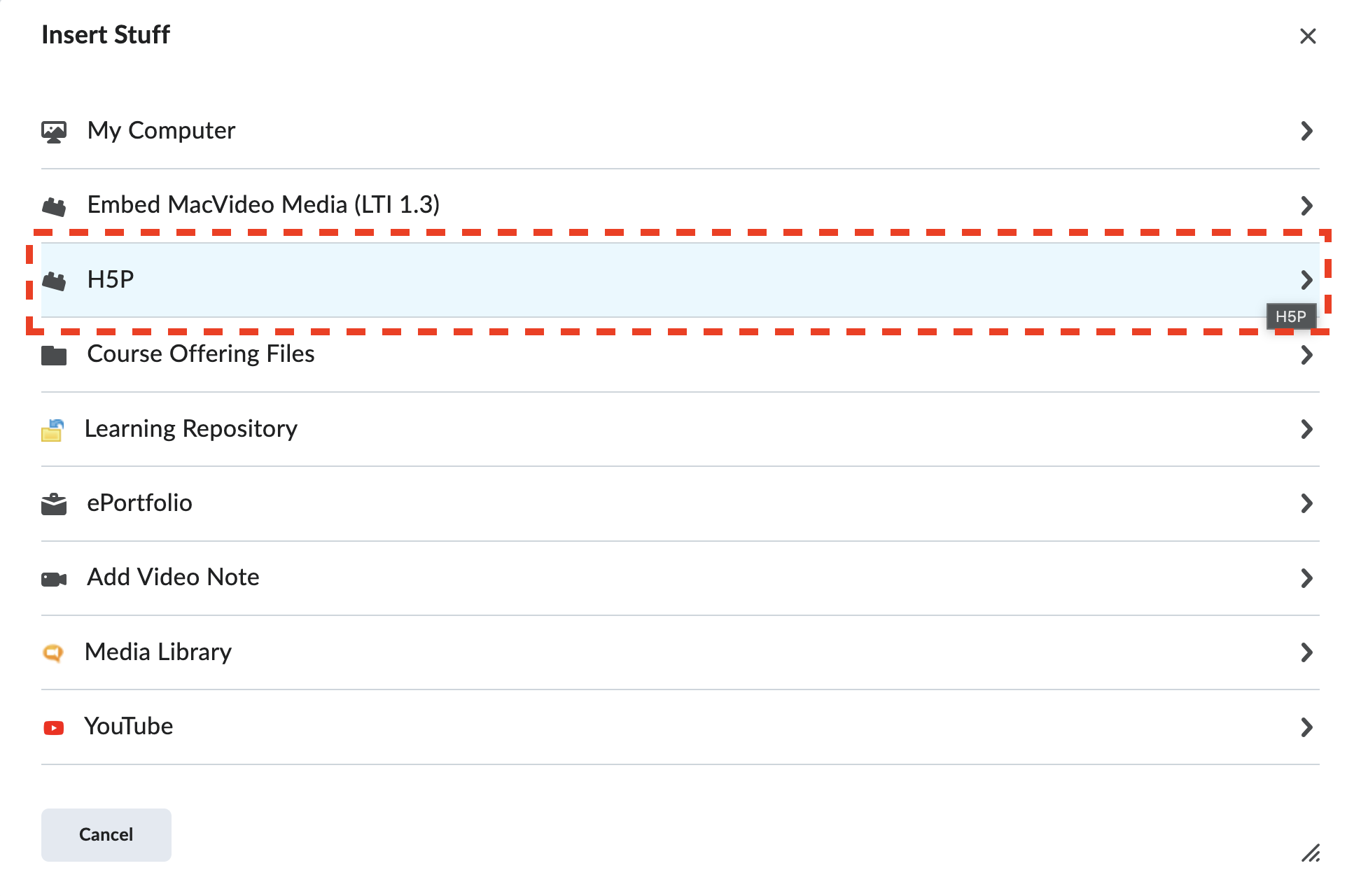
After selecting this icon the the Insert Stuff menu will appear. Select H5P.
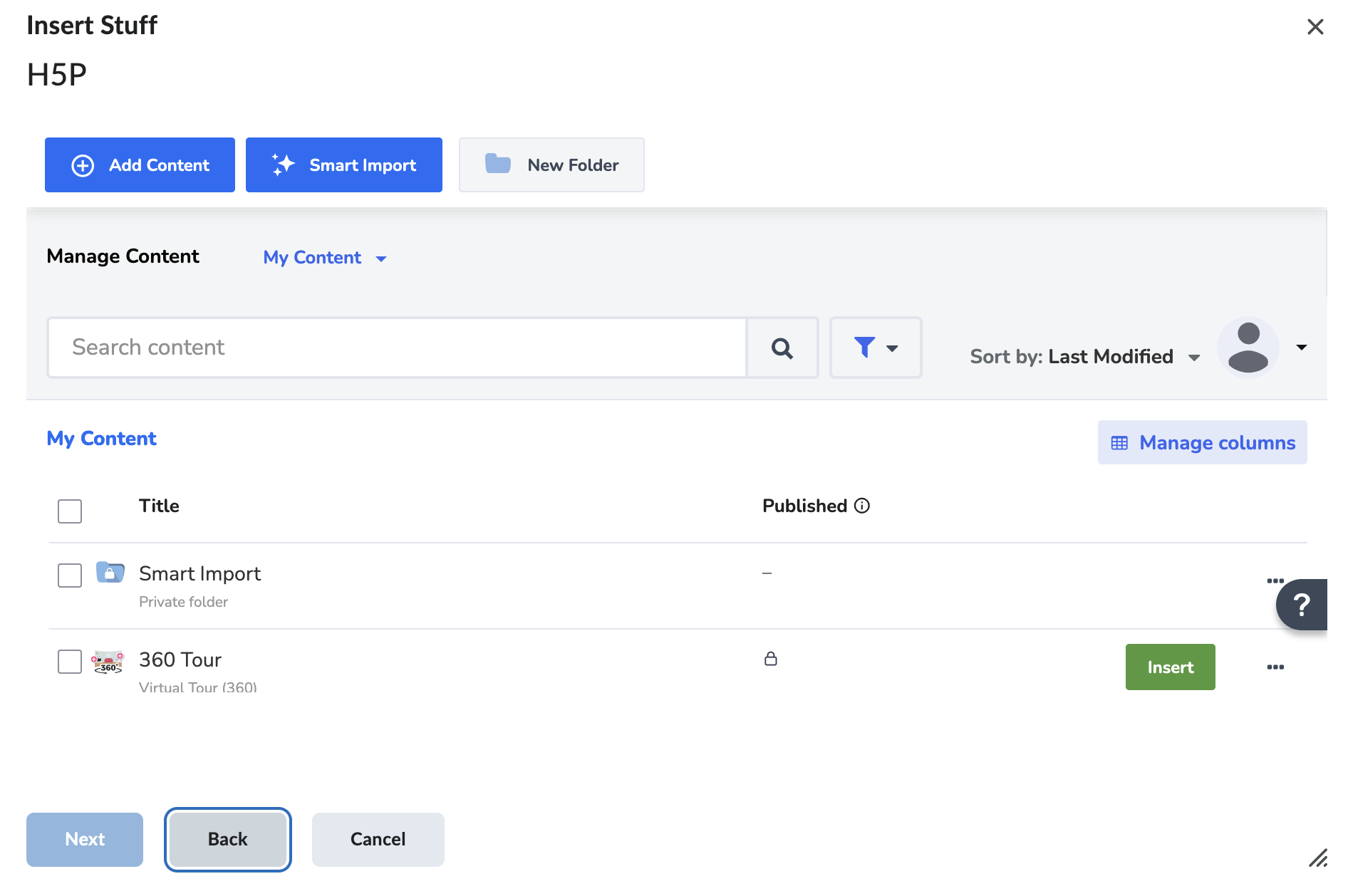
This will load the full H5P portal into the page. From here you can create, upload and manage your H5P content.
 If you are creating or managing a lot of content, you can access McMaster’s instance of H5P at https://mac.h5p.com. Loading the H5P portal separately may be a preferred way of working with lots of content.