
There may be times where you’d like to import content created by other users or content you’ve created previously but in a different H5P instance.
Accessing through Creator+ Authoring Tools
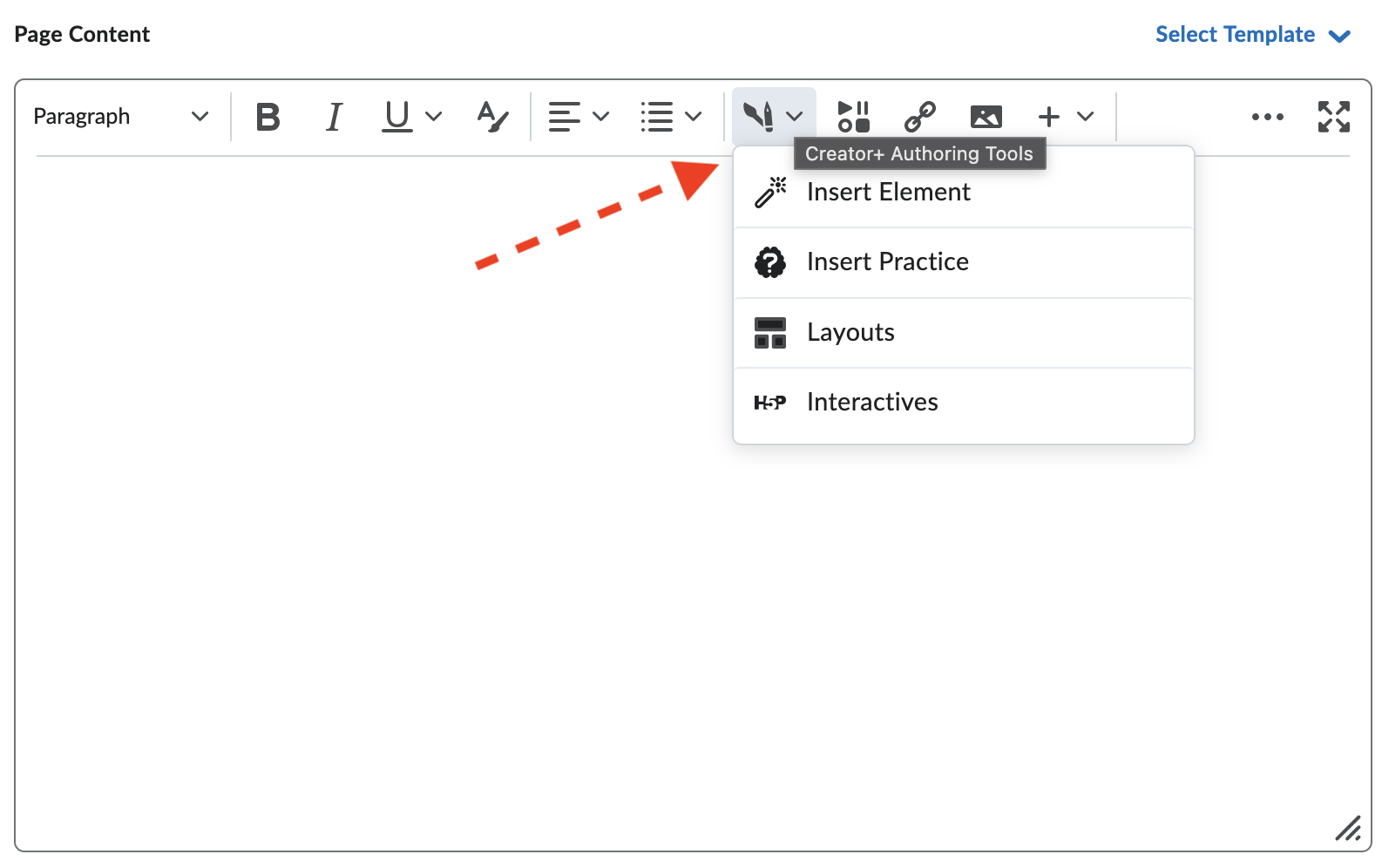
Select H5P Interactives from the Creator+ Authoring Tools menu in the HTML Editor.
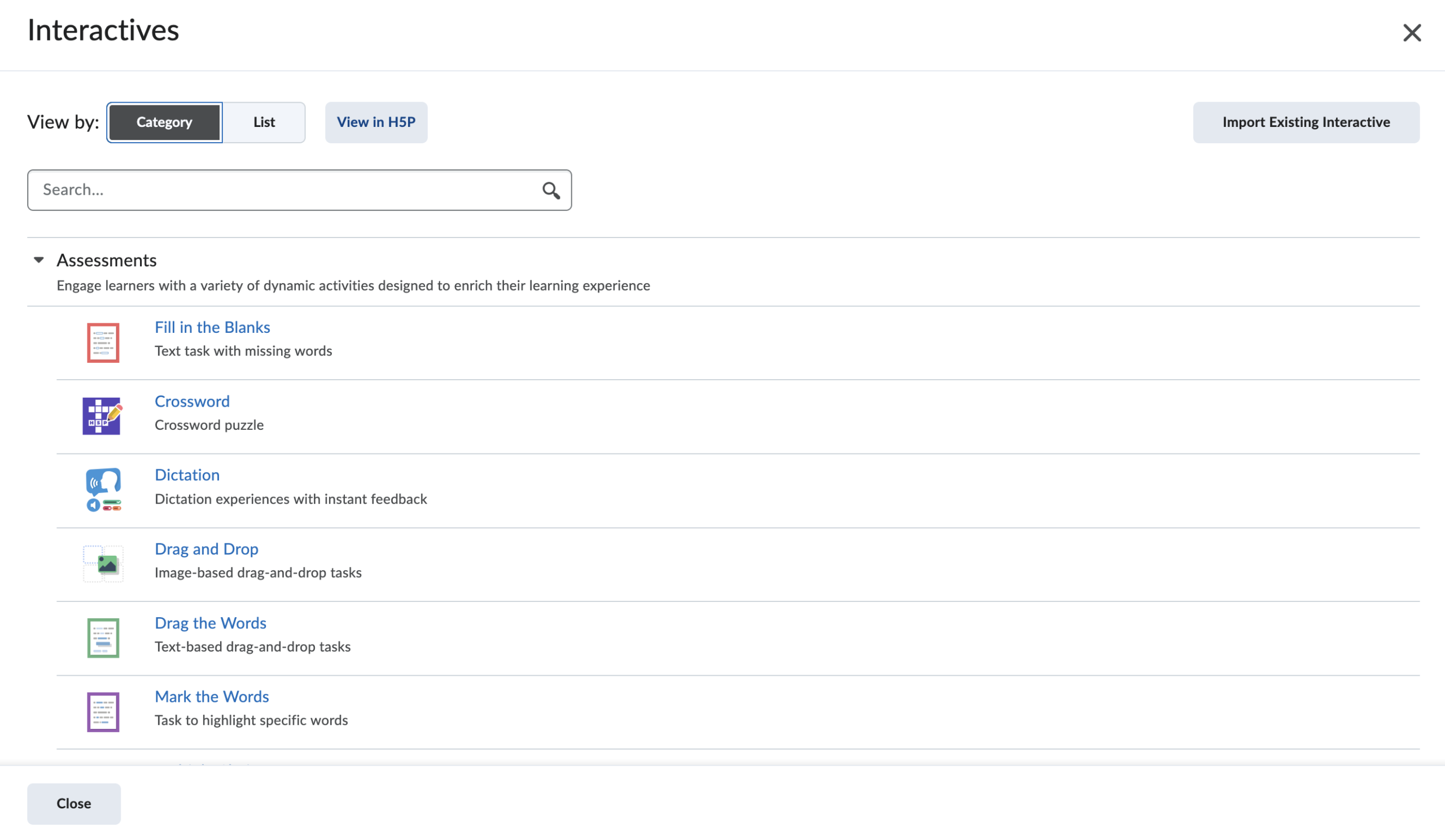
Once H5P loads into the window, Select the View in H5P button in the top navigation.
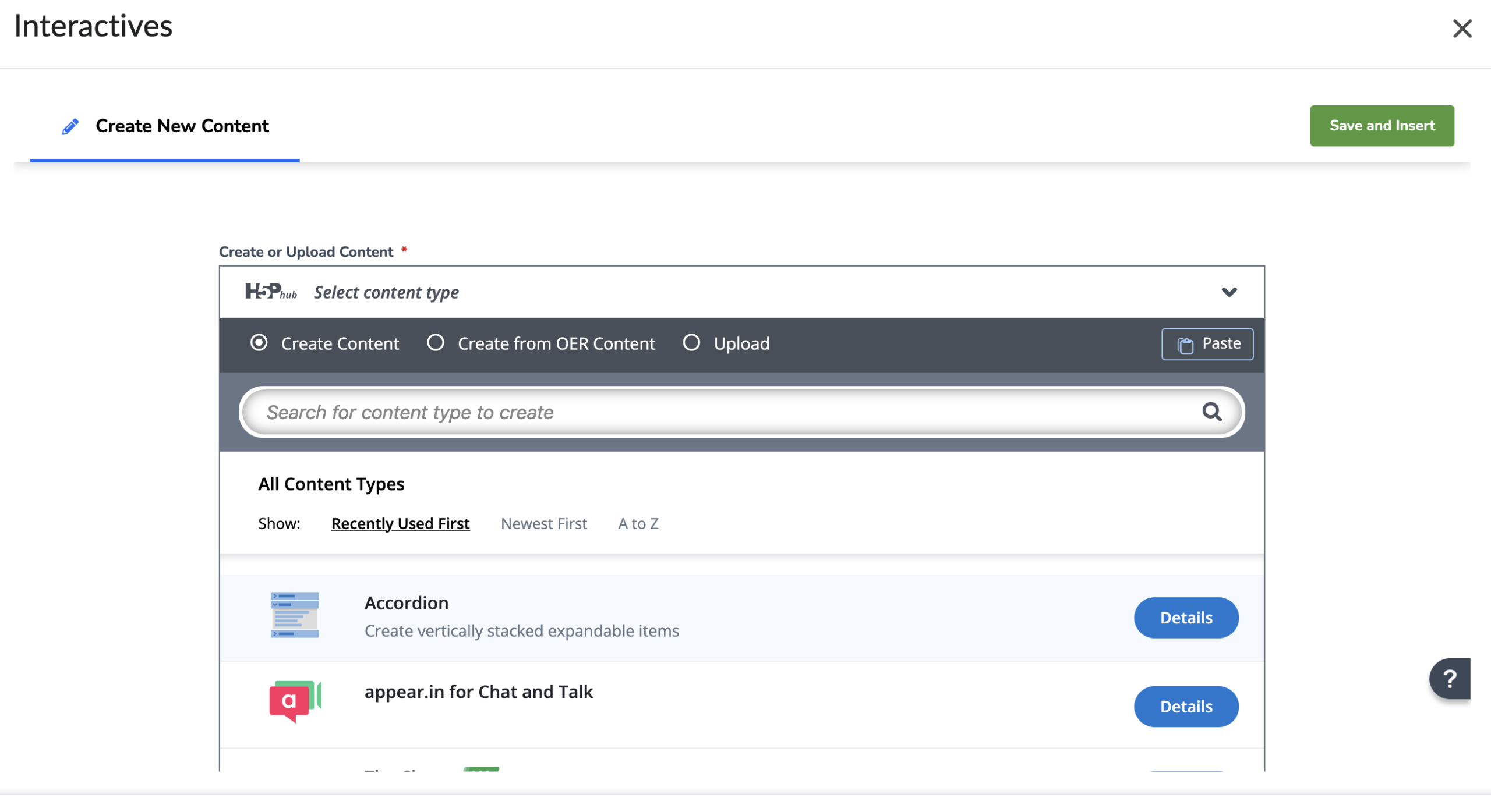 H5P will load a different page. This page will provide an upload option. Select upload.
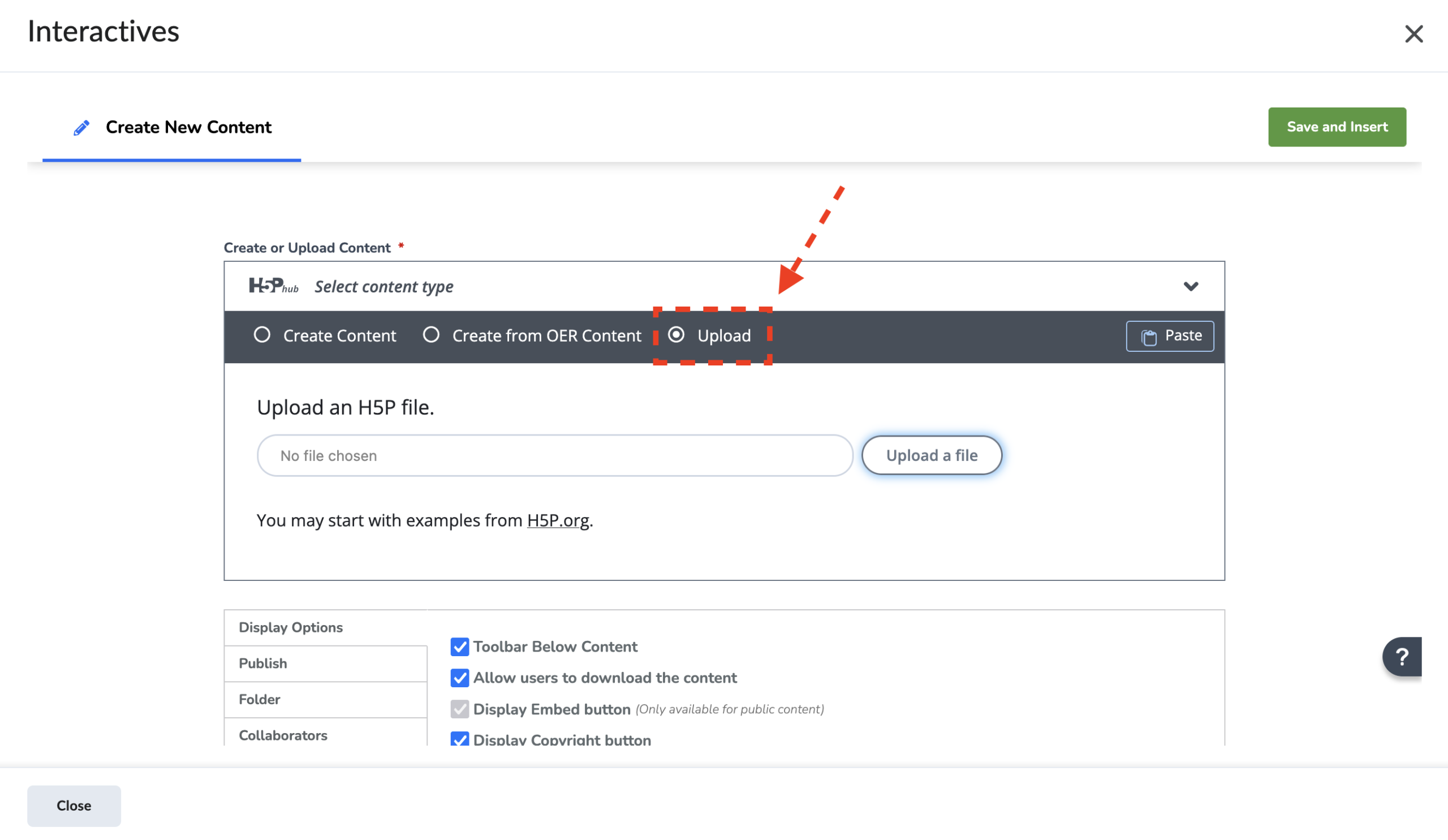 On this page you will then be able to select a file to upload a file. Click the Upload a file button and choose a .h5p file you wish to upload into your account.
Once you’ve selected a file to upload. Click the Use button.
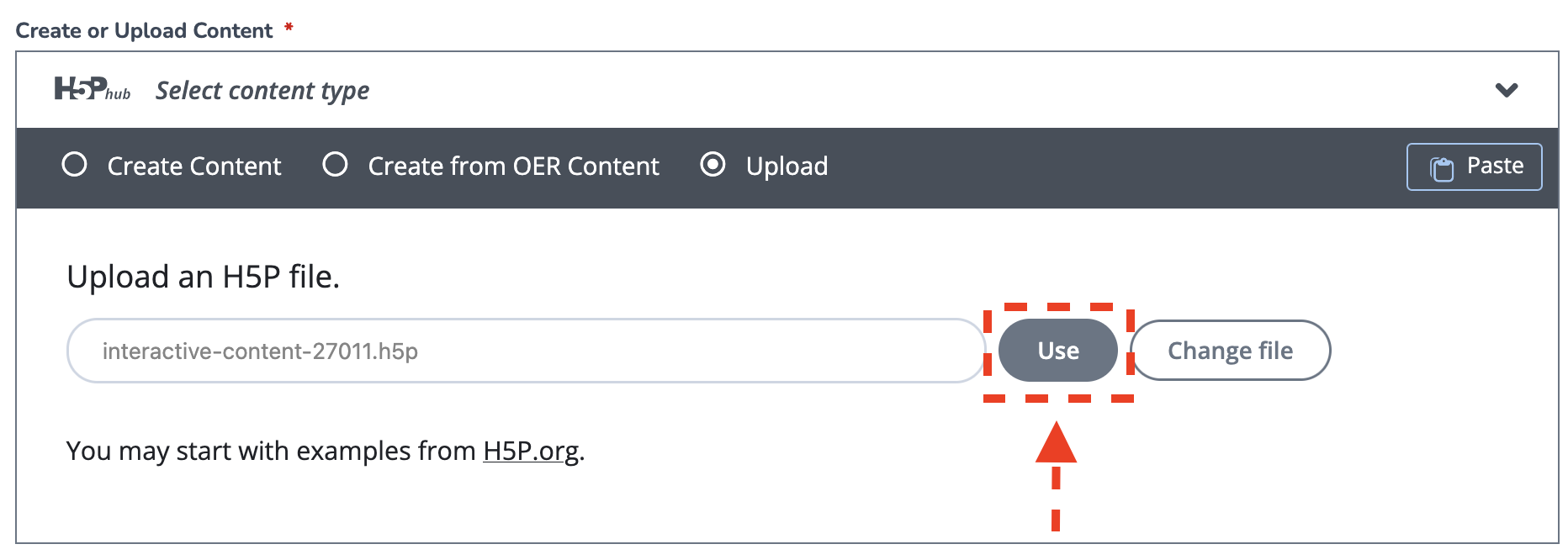 The activity will upload and a preview will appear.
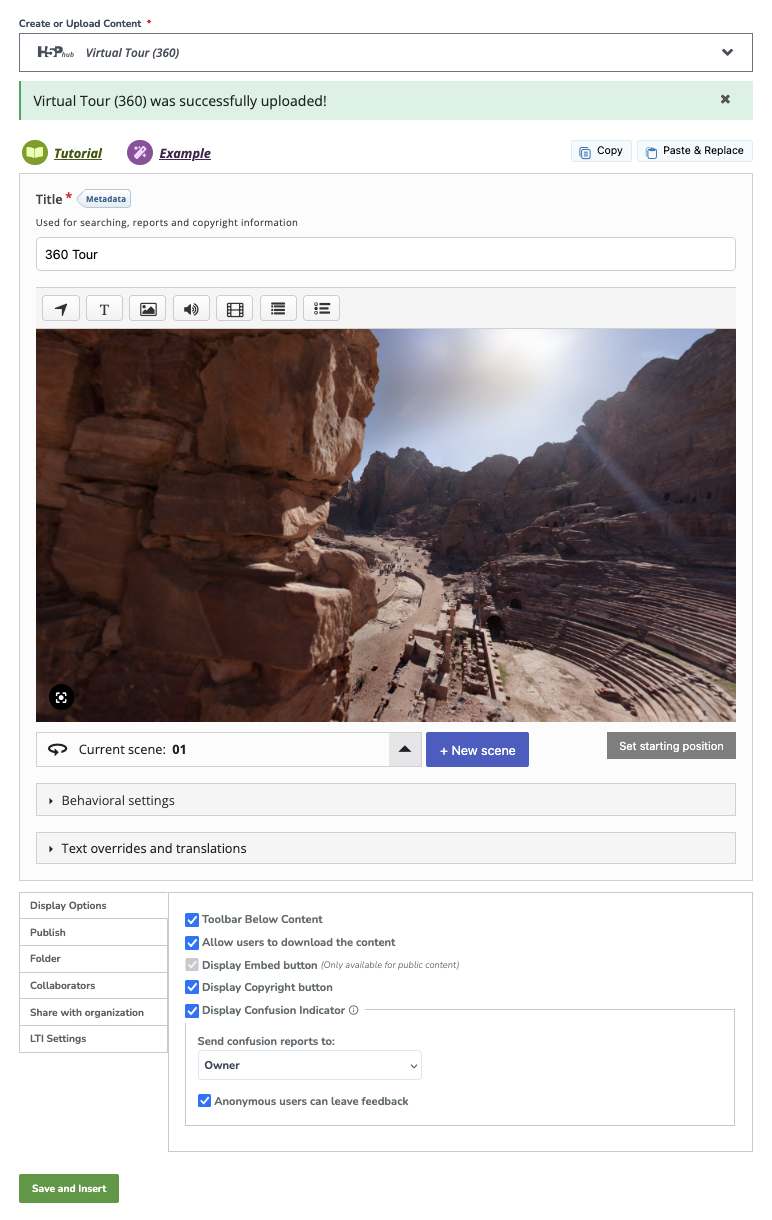 Ensure you’re happy with the settings for the activity and select Save and Insert at the bottom.
Another window with a preview will appear.
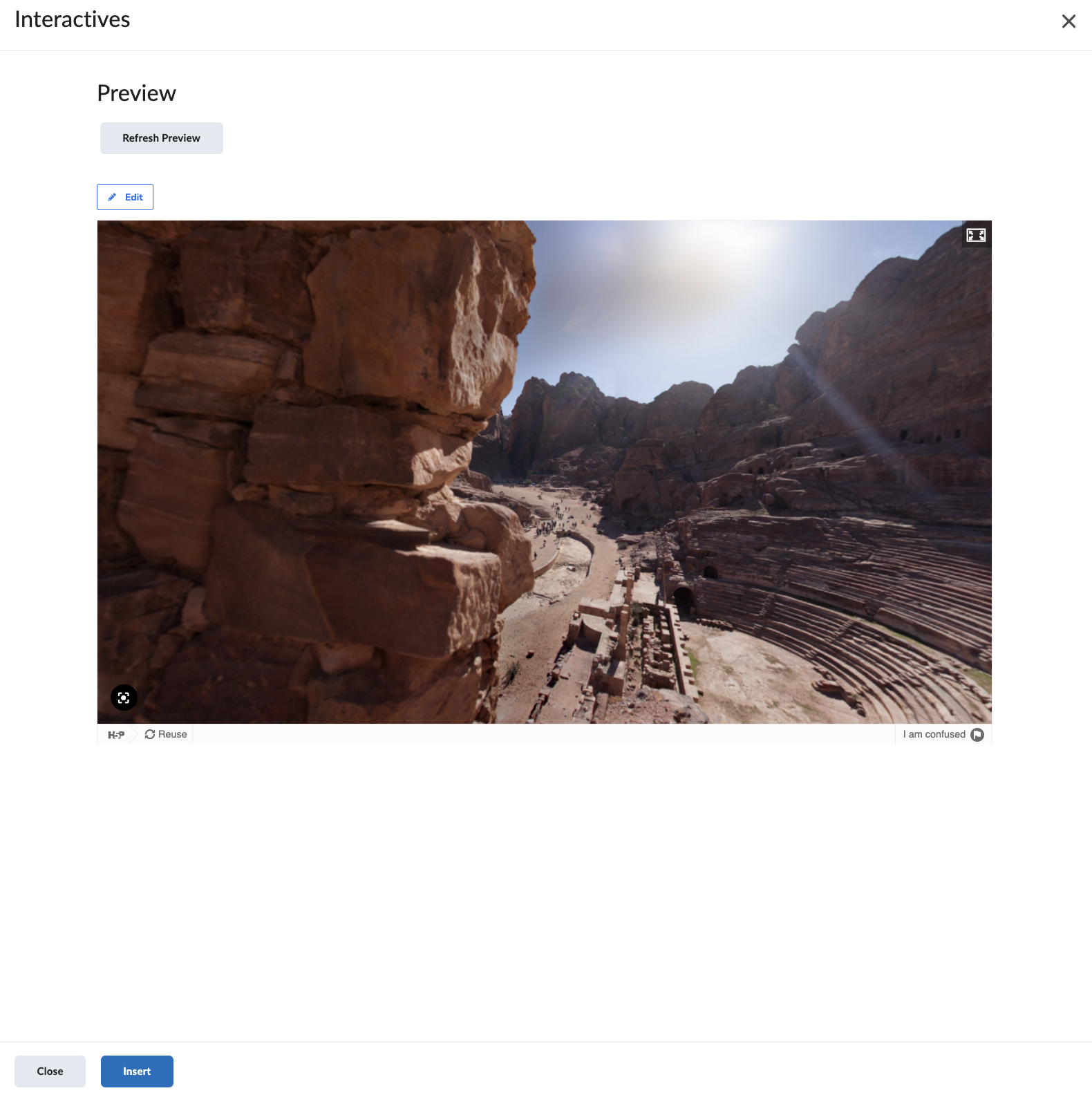 Select Insert to embed it into your page on Avenue to Learn.
Alternatively, you can also upload and manage content at if you have a lot of items to manage https://mac.h5p.com.